Usage & Billing
The Tray.io usage dashboard gives you full visibility of your workspaces and overall workflow usage stats, respective of the amount of entitlements you have been given.
This documentation was updated in January 2026 with information about AI token usage and Merlin Intelligent Document Processing metrics. The usage dashboard now includes additional tabs for these metrics. Please note that test users are now billed according to standard entitlement terms.
For questions about your specific token-to-task conversion rates or billing details, please contact your Customer Success representative or account team.
Access to view this information is limited to users with Admin or Owner roles.
The Tray usage dashboard gives you full visibility of your workspaces and overall task usage stats, respective of the amount of entitlements you have been given.
This will help you manage your entitlements and quickly identify any issues and anomalies should they arise.
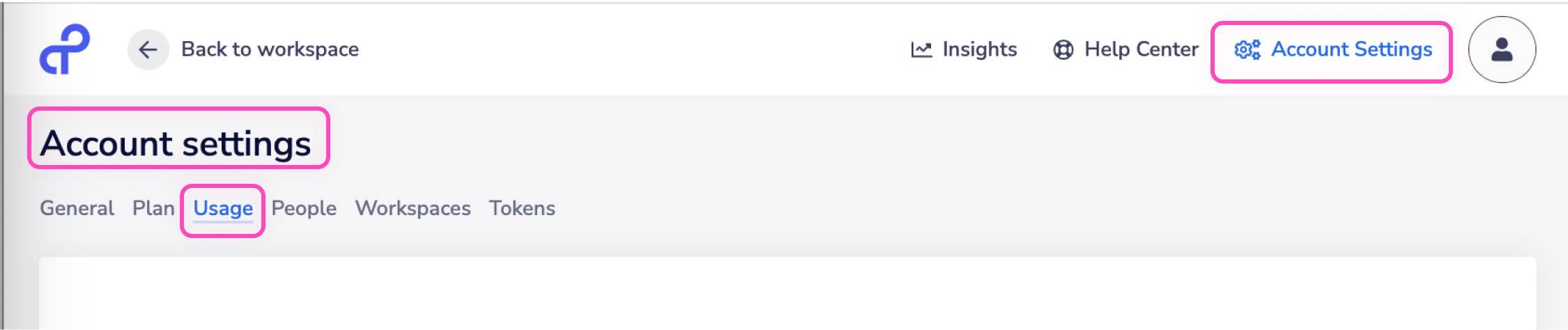
This dashboard can be found by navigating to the Account Settings page and clicking on the Usage tab:
The dashboard is broken down into the following sections:
Tasks
It is possible to limit the number of tasks per month in any particular workspace.
This allows you to identify particular workspaces as sandbox or development environments, and ensure that they do not significantly impact your monthly billing.
Retries as explained in this table are not charged.
It is not currently possible to build Tray workflows which monitor and report on usage.
Aside from the tools described on this page, you can use our log streaming functionality to send logs and events to an external source such as Datadog which can be used to build customized dashboards
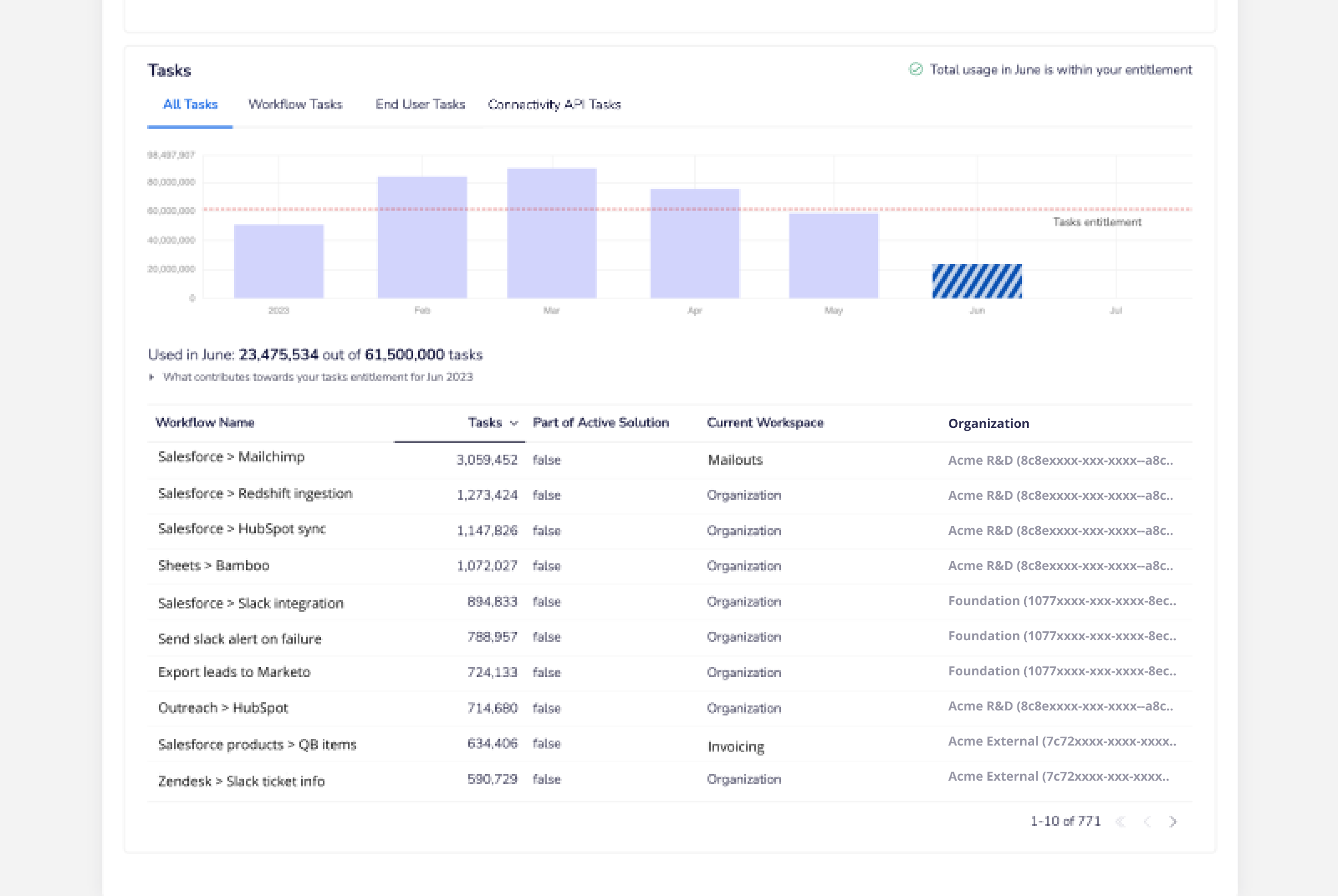
The Tasks section shows ALL task usage - i.e. tasks from all organizations, all workspaces, all workflows, all solution instances, etc.
- If you have a tasks entitlement, you will see a dotted line on the graph for that allowance
- Additional parts of the page enable you to compare the usage versus the entitlement
- For any entitlements, you will see an explanation of what that entitlement is based on
It contains the following tabs at the top:
Task usage now shows usage across organizations in all regions, providing a unified perspective for comprehensive analysis.
All Tasks
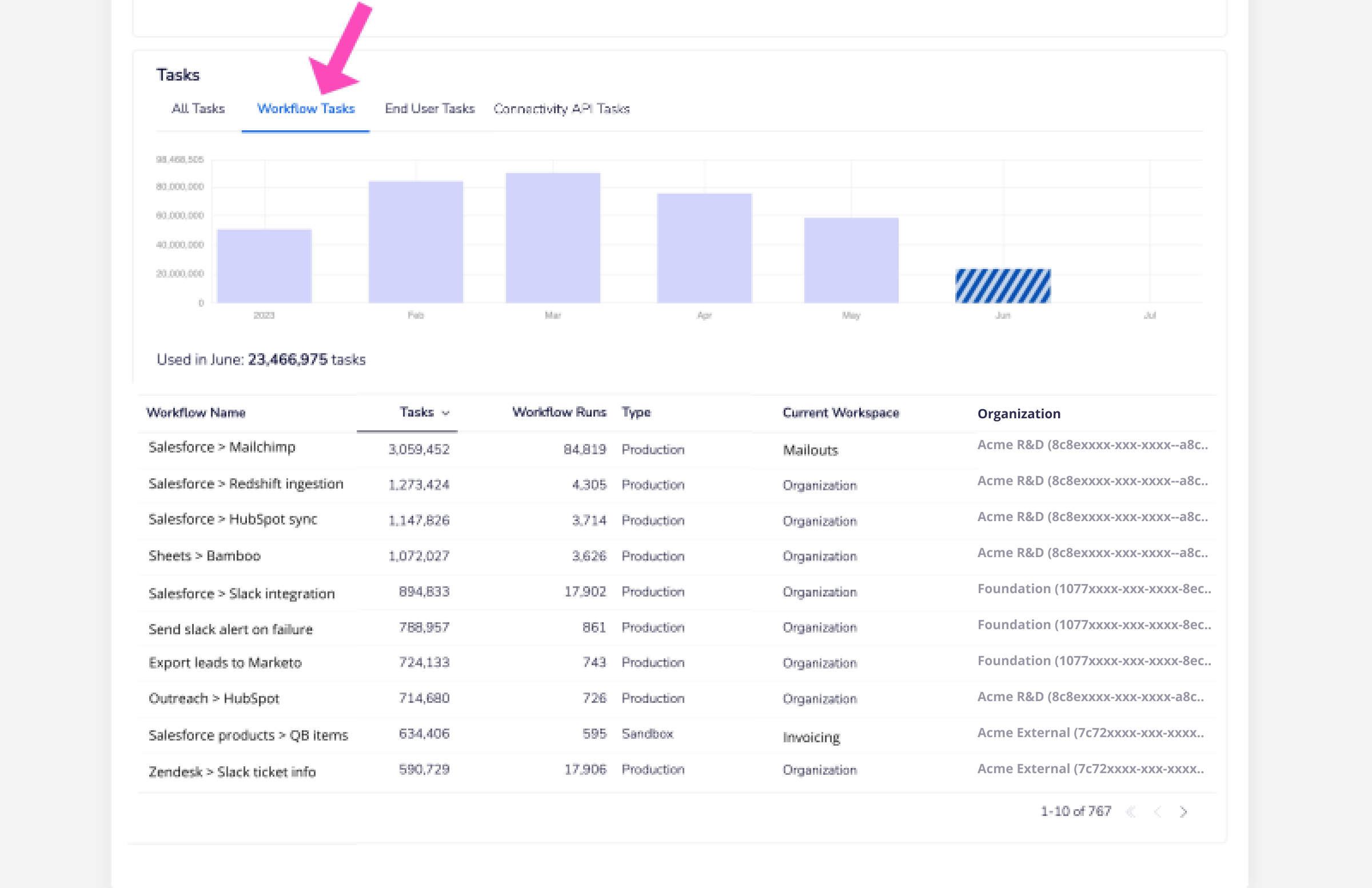
Workflow Tasks
This displays only tasks from all workflows (apart from End User workflows)
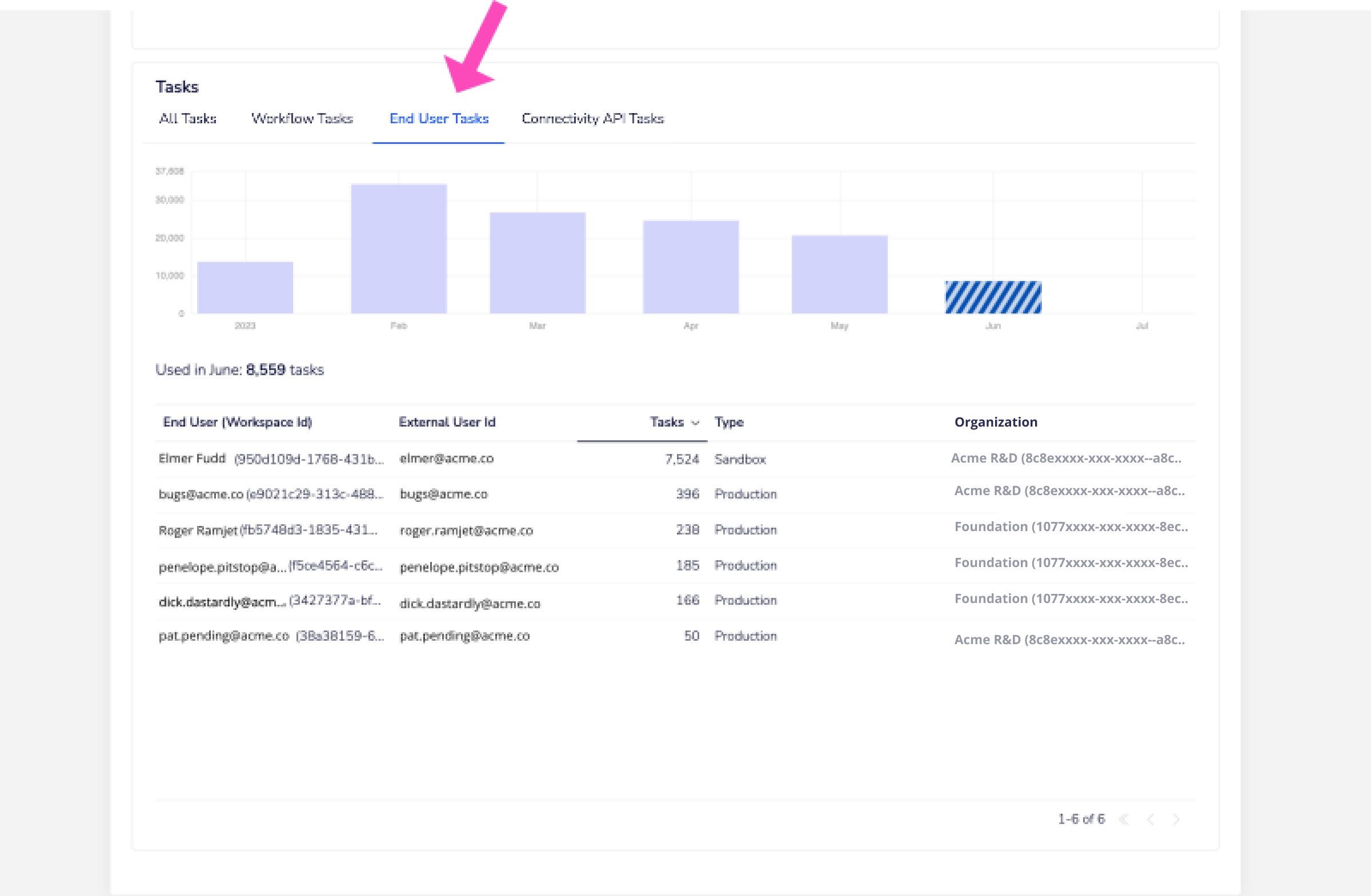
End User Tasks
This view only applies to Enterprise customers using the Embedded Bundle.
This shows only tasks from all End User workflows (i.e. workflows run during a solution instance run on behalf of an end user)
Connectivity API Tasks
This shows any calls that have been made using the Call Connector endpoint using our Connectivity API:
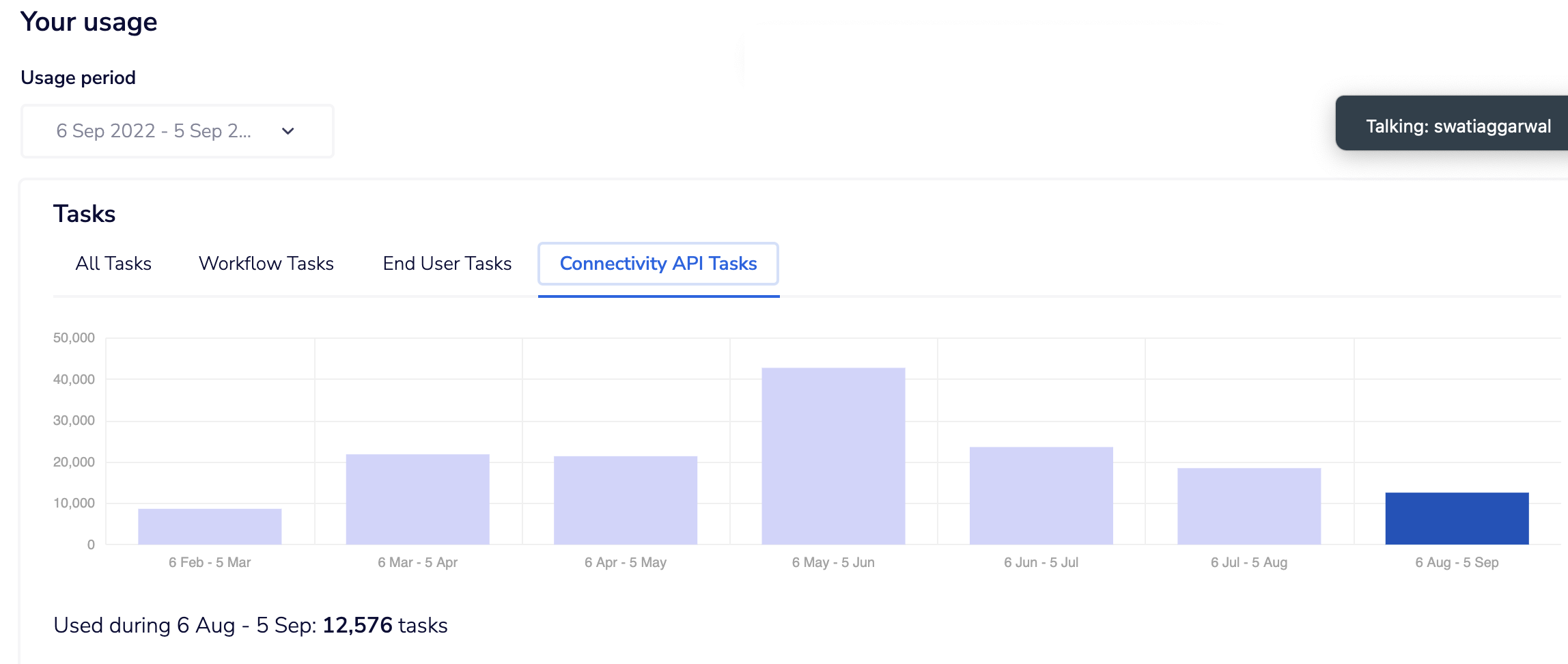
For connectors API, every call to Call Connector endpoint is billed as 1 task.
For Trigger API, Delivery of event payloads after a subscription is created are billable. Every event payload that is processed (see note below) by Tray is billed as 1 task.
Note: Processed events include:
- Events that were delivered to your subscription URL successfully
- Events where Tray attempted delivery but your endpoint doesn't respond after retries
- Events which you filter out at the connector level e.g. applying a filter condition using pick val on salesforce 'on record create'.
Since all of the above events were processed by Tray, these will be billed.
Each single usage of the running steps in isolation functionality will be considered as a single connectivity task and thus billable.
All Tokens
This tab displays the total token usage across all AI connectors such as Merlin Text Generation and Merlin Text Analysis:
Token counts include both input and output tokens:
- Input tokens: Text sent to the AI connectors (your prompts, data, instructions)
- Output tokens: Text generated by the AI connectors in response
The total token count (input + output) is what's used to calculate task usage. Token-to-task conversion ratios are available from customer support, and we may add UI support for viewing these conversions in the future.
You will continue to receive usage alerts at 80% and 100% of your task entitlement, which includes both standard tasks and token-generated tasks.
Workflow Token Tasks
This shows token usage specifically from AI connectors within your workflows:
End User Token Tasks
This displays token usage from AI connectors within End User workflows:
Connectivity API Token Tasks
This shows token usage from AI connectors accessed via the Connectivity API:
Merlin IDP
This tab shows pages processed using Merlin Intelligent Document Processing:
Merlin Intelligent Document Processing counts each page processed as a single unit, regardless of document complexity or extraction models used. This includes pages from PDFs, scanned documents, images, and multi-page files in any supported format.
This consistent per-page counting ensures predictable usage metrics for all document processing operations.
Understanding AI Usage
The following connectors generate AI-related usage metrics:
| Connector Name | Unit Type | Notes |
|---|---|---|
| AI Connectors | ||
| Merlin Text Generation | Tokens | |
| Merlin Text Analysis | Tokens | |
| AI-Agent-Utils | Tokens | |
| Merlin RAG | Tasks | Covered by standard task usage |
| Merlin Guardian | Tasks | Covered by standard task usage |
| Merlin Functions | Tasks | Covered by standard task usage |
| Document Processing | ||
| Merlin IDP | Pages Processed | Document extraction service |
This list may be updated as new AI-powered connectors are released.
To identify which workflows and operations are generating token usage:
-
In the Token Usage tabs, you can see the overall token consumption metrics for your organization.
-
For detailed analysis, examine the workflow logs where token usage information is available. In the logs, look for the
usage_metricssection which contains details like:"usage_metrics": { "input_tokens": 1946, "output_tokens": 221, "total_tokens": 2167, "tray_tasks": 108.35 } -
This section shows:
input_tokens: Number of tokens consumed by inputs to AI operations (your prompts, data)output_tokens: Number of tokens generated as outputs from AI operations (responses)total_tokens: Total token consumption (input + output)tray_tasks: Equivalent number of tasks based on your token-to-task ratio
-
Both input and output tokens count toward your total token usage and subsequent task calculations.
-
By reviewing workflow logs with this information, you can identify which specific workflows and steps are contributing most significantly to your token consumption.
-
You can use the Insights Hub to compare task usage across different workspaces and workflows over time, though token-specific metrics are currently only available in the Usage dashboard.
End Users
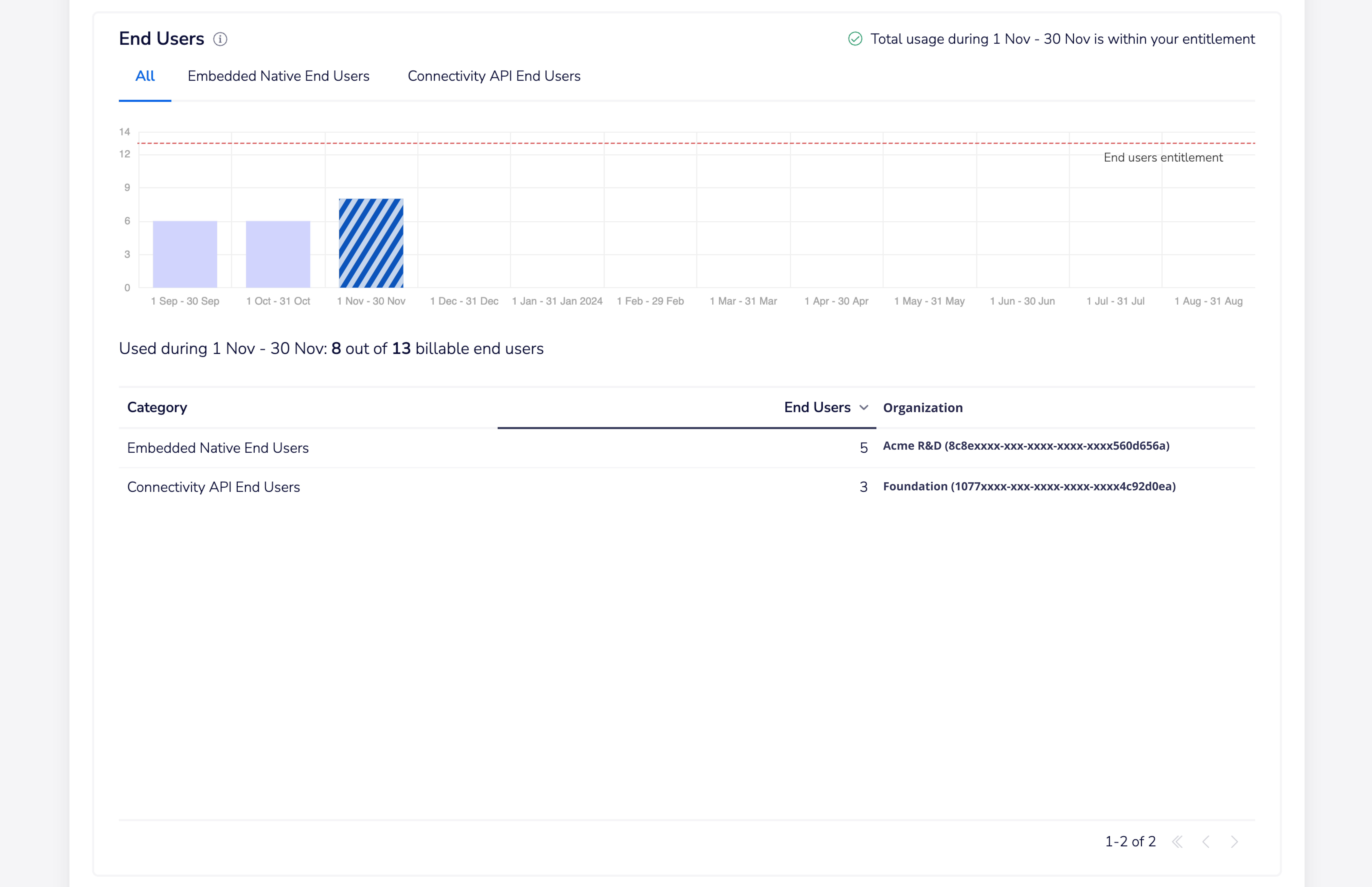
This view gives you a monthly graph of your Active End Users.
An End User is any individual using Tray-powered integrations without a Tray account.
So they can be:
- Embedded End Users who have Tray workflow tasks being run in the workflows in their Solution Instances.
- Connectivity API End Users who have API calls (Call connector, Trigger Subscription events etc.) being made on their behalf
This view can be broken down into 'All', 'Embedded Native End Users' and 'Connectivity API End Users':
Regional billing
You will be billed for usage across organizations in all regions.
Entitlements reflect the total entitlement across all regions.
Usage data for other regions can be accessed by logging into an organization in those regions.
Appendix - tasks explained
What is a task?
The simplest way to think of a task, is to imagine it as equivalent to a step in a workflow.
When a workflow runs it executes each of its steps and each one becomes a task. A task does not necessarily correspond directly to the number of calls to a service that are made. For example, a Tray connector may make several calls to an API when it executes but this only counts as a single task.
The processing that occurs within these connectors is therefore referred to as a 'Task'.
Tasks are therefore the core metrics used when determining the local data throughput necessary in order to perform Tray's logical operations.
Tasks also are the highest consumer of all relevant metrics on our servers (internal calls, memory allocation, processing power, etc.)
In order to better understand how tasks are calculated we can look at the following example workflow:
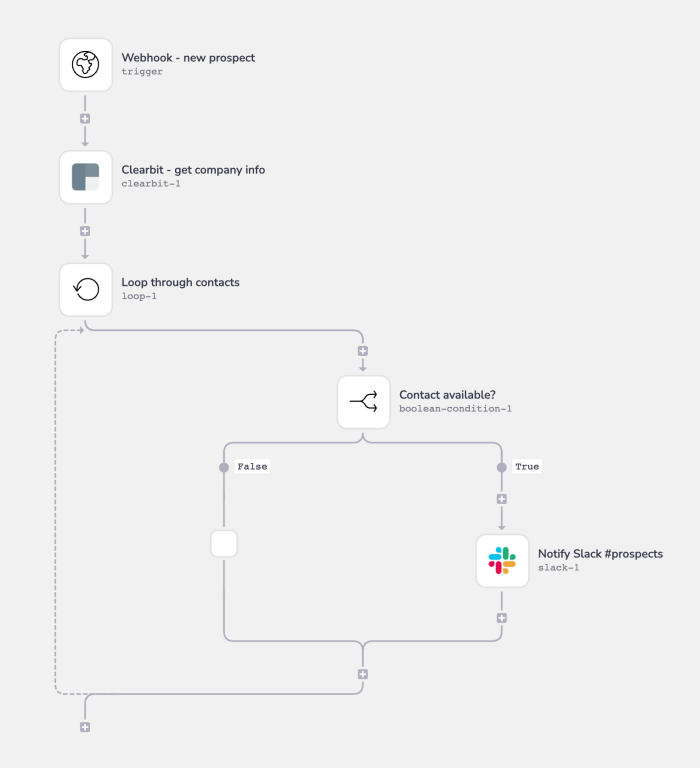
Then we can examine the tasks completed in one run of this workflow, in which the webhook trigger received 2 prospects to be processed:
- The webhook trigger was fired with a list of 2 data elements.
- A call to Clearbit was made.
- The first list element was passed to the loop.
- The first list element was evaluated in a boolean.
- The first list element was sent to Slack in the form of a notification.
- The second list element was passed to the loop.
- The second list element was evaluated in a boolean.
- The second list element was sent to Slack in the form of a notification.
- The loop connector made a final check for any more items in the list, which returned false so the workflow continued and then ended as there were no more steps.
So, on this particular run of the workflow, 9 tasks were executed.
On another run it might be more or less, depending on how many contacts are included in the webhook payload.
AI-Related Tasks
Tray's native AI capabilities contribute to task usage according to your specific entitlement terms:
- AI Connector Token Usage:
- Tokens processed by AI connectors count toward tasks based on your specific token-to-task conversion ratio. Contact customer support for details on your specific conversion rates.
- Total tokens include both input tokens (prompts sent to the AI connectors) and output tokens (responses generated by the AI connectors)
- Token usage is categorized as:
- Workflow Token Tasks: AI usage in your standard workflows
- End User Token Tasks: AI usage in End User workflows
- Connectivity API Token Tasks: AI usage via the Connectivity API
- Merlin Intelligent Document Processing: Each page processed counts as one unit, regardless of document complexity or extraction models used
Your usage dashboard will display these metrics alongside traditional task counts, providing complete visibility into all types of usage. Usage alerts will continue to be sent at 80% and 100% of your total task entitlement, which includes both standard tasks and AI-related usage.
Using the Insights Hub
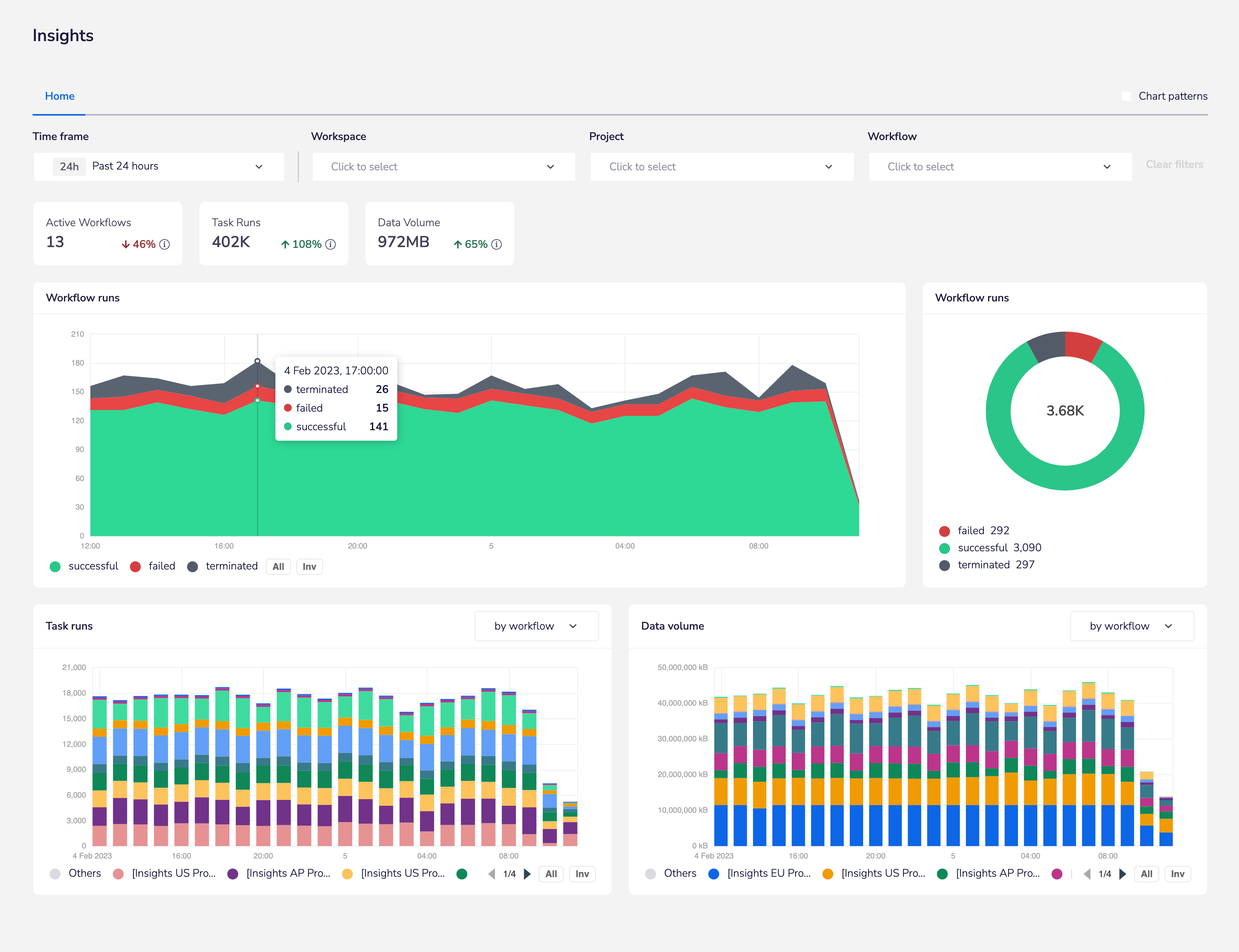
The Tray Insights Hub contains a 'task runs' graph which allows you to drill down into workflows to fully analyze their task usage:
Estimating your message count
Triggers
The initial contributor to the total message count is the trigger.
A single HTTP call or receipt of a WebHook counts as a single task. Tray must communicate with your service of choice in order to establish a secure connection, which makes this one of our more complex tasks.
However a single call is still treated as a single task.
In workflow above, this applies to the trigger step.
Connectors and Looping
Each logical operation Tray performs to each piece of your data requires a task to be run.
These connectors can be found under our 'Core' and 'Helpers' sections in the left-hand panel of our connectors platform.
Depending on how you configure your logic, Tasks may run multiple times in a single instance of a workflow. In the workflow above, this applies to the loop-1 and boolean-1 steps.
Services
Tray allows you to pass your newly formatted and logically grouped data to the service of your choice.
Each connection requires a task to run in order to establish a secure connection and pass the appropriate data through.
In the workflow above, this applies to the clearbit-1 and slack-1 steps.
The above workflow includes 5 connectors. This makes for a minimum of 5 tasks required to run a single instance of the flow.
In our example, we have a loop. Two data elements have come in from our trigger, which requires our loop to apply the entire logical set contained within the loop to each element. Therefore, this instance of the flow consists of 9 tasks.
Debug view
Another way to see how many tasks were required for a single execution of your flow is by going to the debugger.
At the top of the workflow builder, click the Debug tab.
In the Workflow Logs, you will see each instance of your workflow that has been executed. Click on the instance to see the entire list of tasks required.
In the 'Run logs', you will see each Task executed for a single instance of a workflow. Click on the Task to see the data that was processed.